Showing posts with label tweak. Show all posts

Saturday, 7 July 2012

Increase Your DropBox Upload/Download Speed

DropBox is a great cloud services and may be the one with most users. If you are one of many DropBox users you'll love this tweak to sync faster than normal/default speeds. The best part is you don't have to even install an extra software. Just follow this steps:


1. Right Click on the DropBox icon in your tray, and go to Preferences.


2. Go to Bandwidth and click one click on Don't Limit for both Download rate and Upload Rate Or Limit it by specific KB/s if you like.

Friday, 6 July 2012

Add Programs, Files, Folders Or URL's To Your Desktop's Context Menu

Ever notice one more item has been added to your desktop context menu (Right Click Menu) when you install some kind of software like file compression software, Unlocker or something like that. And wondered that wouldn't it be cool if you could add your personal software link that you use very often to that context menu?  Well this software by Vishal Gupta will help you do just that.

This great utility called Right Click Context Menu is a freeware that is very easy to use. All you need to do is download the software, extract it, and then run it (Or just run it without extracting) as it is a portable software, you wouldn't have to even install it!

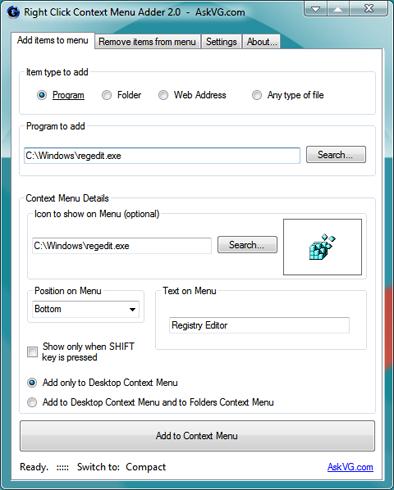
Once the program is up and running it should look like this:

As you can see you get bunch of options to choose from. You can add Programs, Folders, URL's and any type of files. All you need to do is choose the Type and then browse it to that file, folder etc. 
You get an option to even choose your own Icon if you want to do so. Just Browse to the Icon file or even easier some other Software whose Icon you like. 

After you are done with this you can add some extra details like the position of the list item and Text to display on the menu and click "Add to Context Menu" when done. After that the software will show you a notification telling you that the item has been added.

This software is better than the previous one by Vishal Gupta as this one allows you to add Programs and URL's rather than just Files and Folders. 

Download:

[How To Geek]

Tuesday, 26 June 2012

Downgrade Your iPhones, iPads, And iTouch So That You Can JailBreak Or Unlock It

If you are a tech enthusiast or a developer and got your hands on the latest beta version of the iOS 6, then you must be both excited and kind of sorry. One of the few reasons to be sorry is that must have lost the jailbreak. Actually iOS 6 is already jailbroken in its beta stage, but still a lot of things don't work the way they should. Back to the point, if you want to roll back to iOS 5.1.1 all you need to do is just connect your iOS Device to iTunes and then just restore your device. This will roll it back to the latest stable iOS 5.1.1 so you are all set to jailbreak it again.

If you are some guy who wants to downgrade from iOS 5 to 4 or any other version, you'll have to do some more work. This page on iJailbreak is always updated so that you can downgrade you iOS devices. Just follow the instructions and you'll be fine. But be aware this can go wrong and can result into and expensive paperweight at the end. And neither of us iJailbreak or AddictionForTech is responsible for that. 


[iJailbreak]

Stop Facebook From Tracking What Webpages You Go To


Don't you just hate the fact that someone is spying on you even if that someone has nothing to do with you or harm you? Well add Facebook to your hate list because it is on of them who spy on you online.

Facebook is notified whenever you visit one of the more than one million sites on the web that use Facebook Connect and has a history of leaking personally-identifiable information to third parties. Turn off the flow of your data to them! Facebook Disconnect blocks all traffic from third-party sites to Facebook servers but still lets you access Facebook itself.


Download:
Facebook Disconnect

Thursday, 14 June 2012

Change Size of Your Taskbar Thumbnails and Much More

Windows 7 and Windows 8 both show thumbnail of the application that you want to preview from the taskbar. But people still want something more, so Taskbar Thumbnail Tuner is just the ting you want. Using this utility you can change the size of the thumbnail and make it really large or small, set the maximum number or thumbnails a application can have, space between two thumbnails and much more.It works on both Windows 7 and Windows 8 and you wont even have to install it! Just check out their video and you'll know what i'm trying to say.


Downloads:
Taskbar Thumbnail Tuner


[Winaero: HappyBulldozer]

Thursday, 31 May 2012

Adjust Color Temperature, Brightness and Other Display Settings With EasyMCC


Use 'view image' in your browser to see full size image

The Windows Mobility Center (Win + X) gives you a quick access to bunch of things and one of the most used from them is the Brightness setting. You must be changing the brightness according to your needs from time to time. We even reviewed f.lux that can change the color temperature according to you location and time.But sometimes that is not all you want, you sometimes want to change the color temperature personally so that your eyes don’t hurt in the night while staring at the screen. Changing color temperature and other stuff is pretty difficult as you need to go to your video card properties and then surf through all the tabs to find the option you want to change.

EasyMCC can  help you make those changes very easily. It’s a very small freeware that can change Brightness, Color Temperature, Contrast, Different color gains and black levels and gives you option to save those as “Presets” and even “Restore” settings if anything goes wrong. 

Download:


EasyMCC 1.0.1

Thursday, 24 May 2012

Customize Your Alt + Tab Dialog


Alt + Tab Tuner another great tweak to your Windows 7 OS UI. This freeware by WinAero allows you to customize your Alt + Tab Dialog to perfection. You can change the thumbnail size, margins for the dialog, icon size (the ones that are at the bottom-right of the thumbnails) and some more stuff. You'll get a better idea from the following video. I'm keeping a snapshot of my settings for those who are having a bit of a trouble with adjusting the sliders. But first the coool video!


My Settings (Snapshot) :


Downloads:


Wednesday, 23 May 2012

Customize Your Windows Explorer.


The above video is quite explanatory about what kind of things Ani Explorer can do with you Windows explorer. It is a great utility for all those who want some customizations. Just download the software from WinAero.com and select the customization you like.

Download:

Thursday, 17 May 2012

How Get Magnetic Links Of Almost All Torrents?

Many of the torrent sites this days support Magnetic Links that can open up you default torrent client and start the download by just clicking a small button on their sites. But still the best torrent search engine Torrentz.eu and many other torrent sites don't support Magnetic links (What a Shame..!). But no worries any more. There is a script available that can generate magnetic link right into your Torrentz.eu searches. All you need to do is install a script manager for your browser and then install the Magnet Catcher from the UserScript.Org and you are set for hassle free torrent downloads. The best thing is you can even do more stuff like blocking ad's from every site and customizing each and every sites using this script manager.

Downloads:


Script Manager for:


1.       Chrome : Tamper Monkey
2.       Firefox : Greasy Monkey
3.       Safari : Link
4.       Opera : Link 


       Magnet Catcher


Magnet Catcher Script at work

                             magnet-catcher

Monday, 14 May 2012

Get Preview Thumbnails For All Video Formats For Free

Windows have a great thing that shows us the video thumbnail of your videos. But there is a glitch in it just like every other Windows product (Not Perfect). It doesn't show thumbnail for all the video formats that we use in our day to day life.So if you are a movie buff or TV junkie and have a huge collection of movies/TV shows , then must have noticed it, and must be irritated by it.

But you don't need to worry any more because our friends at BabelSoft have given us the solution. Just download the software called Media Preview and check the video formats for which you want the Media Preview to generate thumbnails.Media Preview supports almost all the formats we use like 3GG, Flv, Mkv, and many more.

Download the software according to you system type from here. 
Don't know what your System type is?

Monday, 7 May 2012

How To Change Your Windows Log-in Screen?

If you are like me than you must have always wanted to be different in some things. My Windows Log-in screen is one of the things that I wanted to be customized. You must be thinking that this seems to be a quite difficult thing, but trust me it as simple as downloading a software. You’ll have to download a software called Windows 7 Logon Background Changer. Once you have downloaded this software just install it and then the UI will tell you the rest. You can choose from the backgrounds already given in the software or you can add you own picture as a background.


Before  

Login screen before changing the boot screen after the software

After

Login screen after changing the boot screen after the software

Tuesday, 1 May 2012

Best and Easiest way to customize your Windows OS

Are the kind of guy who wants to customize each and every thing right from your start button to the way your computer shuts down? Then you are at the right place. I like my computer to be designed my way and not the way some design manager wanted it to be. So I've written this post for all of you who are stuck with that old unpleasant Aero theme on your Windows 7. Don't worry this tricks even work on your old machine that might be still running Windows XP.

The Steps for beginning to create your own Windows Theme are:

1. Download and install Rainmeters latest version.

Download the Rainmeters software from here. But don't forget to see your Windows OS' System type (i.e. 32- bit or 64-bit). For all of you who don't know what this is and how to find it, have a look at this. The reason I'm telling you to find out your system type is that Rainmeter has different versions for different system types. So if you have a 64- bit system and you try to install a 32- bit software chances are that an error will occur.

2. Select the things you want to customize.

You need to choose weather you want to change your whole Windows Explorer or just want to add some stuff to your desktop. As I just wanted a cool clock and a media player controller, I just searched for those on the internet.

3. Finding your stuff on the Internet. 

To find the stuff you need, you can go to deviantART and then just type Rainmeter in your search box to get a list of customizations available for the Rainmeter. Even if you just want (for example) clock, and you found something that has the clock of your choice but you don't want other stuff like the media player, performance meter etc. you can just click the search result and the read the description. In the description area you might find the exact name of the Rainmeter skin for just the stuff you want. You can even find really cool desktops here, even for this you can read the description for the things you want.

4. Installing and Managing your skins. 

I can write lots of line to explain one thing on this topic but this following video by IWEBProductions that will help you much better.


5. Getting Advanced.

If you know a little bit of C++ or C# you can create one of you own Rainmeter skin here or if you are not too much of a pro than you can just edit the source of the skins that you have already downloaded so that you can personalize it in the perfect manner. To do this open your skin manager and click on the skin plugin you want to edit, the source will open in a notepad so you can easily change the source and then save it with the same name and same place. Remember do not change the name of the source file it is very important for the plugin to work.

Thursday, 26 April 2012

Increase you internet speed for almost no cost!!

I know you must have always wondered if there was a way to increase you internet speed without having to ask your parents to ramp up your internet plan or having to pay extra by yourselves??
Well to be hones with you there isn't..
Bummer???
Not exactly.. By doing a few performance tweaks in Windows you can increase you internet speed.

There are many ways to increase you internet speed, following are the ones I know. So please let me know if there are any other ways  to boost internet speeds for free or at low cost.

1. Power Manger tweak in Windows

This tweak will give a little bit of performance boost. It is very useful where there is a low wi-fi reception. For those who can't watch or understand the following video, let me help you step by step.

Step 1: Go to Start button
Step 2: Go to Control Panel -> Power Options
Step 3: Chose the power option to which you want to apply this tweak (Example:High Performance)
Step 4: Click "Change plan Setting " right next to the power plan you chose
Step 5: Click "Change advanced and power settings "
Step 6: Find "Wireless Adapter Settings" and click the plus sign next to it.
Step 7: Click on the plus sign nest to the "Power Saving Mode"
Step 8: Select "Maximum Performance" for both the situations of computer power (i.e On battery and Plugged in) 


2. Get youselfs a Good Ethernet cable

I know you will say that I already have a ethernet cable. But the question is what type/category of  ethernet cable you own. The ethernet cables come in category. The most common now a days are Cat5 cables. But most of you still might be using you old grandma ethernet cables to surf you internet because you are too lazy to buy new one or you didn't knew that old ethernet cables can affect you speed. So when you use you Cat3 ethernet cable to surf the web, it is but obvious you are going to swear you internet company for blocking you bandwidth even though you are generous enough to pill their pockets with great amount of money by taking up a premium high speed plan.
You can buy a Cat6 ethernet cable if you are looking for high data transfer speed between your media center and you computer or Cat5 or Cat5e cables will just do fine with the data speeds of upto 1GB/Sec.
You can buy  this Cat5 and Cat6 cables from you nearest superstores, or they are even available online on:
Amazon:  Cat5, Cat5e, Cat6.
eBay:       Cat5, Cat5e, Cat6

Please do you selves a favor and don't buy Cat7, and those gold plated Ethernet cable. they are of no use unless you have a "Supermachine" to work with.

3.Create a Cantenna

People seem to love this DIY and guess wat it is not fake!! It really works so create your Cantenna and surf web a mile away from you home(May be that's a lie , but you get the idea). This device is very easy to make and cheap to make. This video by postadelmaga  youtube shows you how to make a Canteena.


4. Install a custom firmware on you router

Let me clear one thing this method can get a little geeky, it can breach your routers warranty, you router can be of no use if things go wrong but it is worth all of this it you know the feeling you get after accomplishing it.
This method is even hard for me to explain so I am just leaving you with this video and some information so that you can search other techniques to install it by googling it.
\
Some basic Information:
The site where you will find the firm ware is here
Lifehackers post on installing custom firmware is here
Check if you router is supported by DD-WRT here
List of videos on Youtube to install DD-WRT are here but you'll have to add your router name into the search for more personalized installation information,

5. Get youself a better ISP

I know this might hurt but the best thing to get better speed is by having a high internet speed plan in the first place. The above methods are just tweaks and can help you increase speed in some situations, finally it all depends on your ISP, if your ISP is giving you a maximum of 24MBPS then there is almost nothing that can change it to 100MBPS for free. So try to find  a better ISP that can provide higher speeds for almost the same price. Compare different ISP and then chose the best you can find.