Showing posts with label download. Show all posts

Monday, 23 July 2012

Speed Up Your Slow PC


You must be felling that your computer is SLOOOOOOOW. Don't worry that's how almost every techy in the world feels like. But if you really want to speed up your machine with some small tweaks, it'll help you a lot in some situations.

Let's get stared:

1. Clean Up Your Disks

Doesn't matter whether it's your phone, PC, Laptop, or MP3 player , this step applies to all your electronics. Cleaning up your disks is very necessary, even though you fell that all the data on your computer is important, you'll have to let some of it go. To do this you can uninstall unwanted software that slow down your Windows StartUp, or defragment your disk using great utilites like Smart Defrag to get a little help. Read this article to know more how you can keep your data and still have lot of space on your system. One of the ways to do it is by creating a free DropBox, SkyDrive or Google Drive account to save your data online. Use this link to give me and yourself additional 500 MB space on your 2GB free account.

2. Install A Lighter OS

Install a lighter OS on your computer to get faster boot up speeds and lesser frustration. You can use some of the lightest linux distros to install onto your computer. You can even just make a live USB for your light distro if you dont want to go through the tough work of installing a whole new OS and it may still give comparatively faster application start ups and system boot ups. You can even install something like Chrome OS called Chromium OS if it is supported onto your system. Chromium OS is basically OS with just Chrome in it. You can use it if you just browse internet most of the time and as now a days you can do almost any thing online that you can do on your PC, Chromium Os can be used as an alternative.

3. Increase Internet Speeds

Just like every one else even you must be felling that your internet speeds can be improved and the answer is both yes and no. You can get a little more speed by the tricks I showed you earlier and you can even change your DNS settings using  to get an extra kick on you speed but at the end of the day your applications and your ISP (Internet Service Provider) decides how mush speed you get. You can try some tricks to crank up your DropBox upload and download speeds which really give you amazing syncing speed, but even this works only because DropBox was limiting your speed so don't search for trick to boost up Chrome or something like that, it WONT WORK!

4. Overclock Your System

This is something that I wont recommend to you if you are a newbie because overclocking your Processor, RAM, or GPU will void its warranty. The other problem with overclocking is that if you don't know the limits you can endup overheating your processor , blah, blah to such an extend that it will never work again. So be careful with that. Overclockers.com has some great tutorials but the best thing to do is gather information about your computer like Motherboard name, Processor name/generation, etc and then find if anyone with same spces have put on a tutorial by googling it.

5. Use Windows ReadyBoost

ReadyBoost is a great functionality already in your added in Windows OS' watch the video and read the explanation on Windows Site. There are some other Softwares like eBoost which can help you do the same but I don't see a need to install an extra software for ReadyBoost. But watch this video of eBoost it explains how  eBoost (ReadyBoost) works.


6. Get Yourself A SSD

Using an SSD will give you the best performance boost than any other tweaks mentioned above, but again all the above ones were for free. SSD replace come in various sizes and the size of SSD you'll need depends on your usage. If you are a PRO designer or something and you use very huge and memory consuming applications like PhotoShop and 3D's Max you'll need a SSD with slightly more space, but again it depends on how much you are able to giveup. If you don't want to spend too much on SSD and ready to wait a little more for an application to open up, you can save a whole lot of money. Have a look at this guide on How To Buy SSD on PCMag.com to understand your needs better.

Friday, 6 July 2012

Download Google Books For Free


Google Books Downloader is a simple software to download books from Books.Google.com. Just like a Youtube Video Downloader you need to have the link for the book from the Books.Google.com , then paste it int to the Step 1: text box of the software then select the folder to which you want the book to be saved. Finally click Download and you'll see a screen like the image next to this paragraph.


Downloads:


Rename And Find Metadata For Your Movie Collection

If you have a huge movie collection I bet you'll love this software. I'll download meta data like the correct movie name, year of release, plot, actors and their role in the movie, thumbnails, and posters (fan pictures) from the movie.

The download is a .jar file so you'll need a Java Runtime Environment installed on your system. Once you've got Movie Renamer and Java Runtime Environment you are all set to install the software. Go to Run from the start menu or just press 'Win + R' and then type 'cmd' and press Enter. A Command Prompt will pop-up. Note down the path (Mine was C:\Users\Me). Then copy the .jar download to that folder (C:\Users\Me) and then restart the Command Prompt (Not necessary for all but Recommended). The type:

java -jar <fileName.jar>

and then press ENTER. This should start the installation dialog box.
If the installation fails, try any of the other versions from here. For me the first installation failed and the Alpha version 1.3.0 worked fine. 


Once you have the software up and running scan for movies from your computer from the top left button of the Movie Renamer. The as soon as the movies load up you'll see file of only particular formats that means all those subtitles and thumbnail pics are already skipped from the list. But if you have a Movie of some other format that is not already mentioned in the Filters just go to Settings and then go to Filters and add that File Format. 


After this you are all set to get the thumbnails, metadata, and lot more stuff of the movies you like. 


Downloads:
Movie-Renamer
Code.Google- Movie Renamer (If their site is down)
Java Runtime Environment

Stardock Fence: Manage Your Desktop Icons With Cool Effect


Do you want to keep your desktop organized by end up with something like this:

To organize your desktop all you need is Fence. It is a software by Stardock Corporation. It is preety easy to use and the first time the program runs after installation it even gives you a quick tutorial on How To Use Fence. 

To create a Fence all you need to do is Right Click and Drag your mouse, a context (Right Click) menu will open saying "Create New Fence" once you click it it will open a small  dialog box asking you for the Fence name. You can name it anything and then you'll get a Fence that looks something like the Blocks in the First Image. Now you can just drag and drop icons into this fence and if there is no more space for the icons the Fence will automatically become scrollable. So technically you can create and desktop with endless number of Icons. 

Watch this Tutorial for more on Fence: 


Download:

Add Programs, Files, Folders Or URL's To Your Desktop's Context Menu

Ever notice one more item has been added to your desktop context menu (Right Click Menu) when you install some kind of software like file compression software, Unlocker or something like that. And wondered that wouldn't it be cool if you could add your personal software link that you use very often to that context menu?  Well this software by Vishal Gupta will help you do just that.

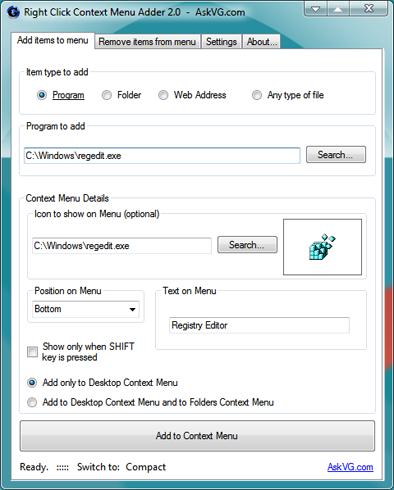
This great utility called Right Click Context Menu is a freeware that is very easy to use. All you need to do is download the software, extract it, and then run it (Or just run it without extracting) as it is a portable software, you wouldn't have to even install it!

Once the program is up and running it should look like this:

As you can see you get bunch of options to choose from. You can add Programs, Folders, URL's and any type of files. All you need to do is choose the Type and then browse it to that file, folder etc. 
You get an option to even choose your own Icon if you want to do so. Just Browse to the Icon file or even easier some other Software whose Icon you like. 

After you are done with this you can add some extra details like the position of the list item and Text to display on the menu and click "Add to Context Menu" when done. After that the software will show you a notification telling you that the item has been added.

This software is better than the previous one by Vishal Gupta as this one allows you to add Programs and URL's rather than just Files and Folders. 

Download:

[How To Geek]

Tuesday, 26 June 2012

Download Torrents Directly In To Dropbox

You must be familiar with how to download torrents without having to install a torrent client, but this is a whole new thing. Boxopus will download your torrents directly to your Dropbox account so that you have a copy of that torrent file in the cloud.


Just follow this steps:

1. Create a Free Boxopus account ( You can Sign in with your Facebook, Twitter or Dropbox account )
2. Allow Boxopus when Dropbox show you the notification.
3. Upload the .torrent file to Boxopus.
4. Done!

Boxopus first downloads the whole torrent to its hard drives and then upload it to your Dropbox account. Thar means you'll never have a broken file!

[Boxopus via TorrentFreak]